8 min read ·
Google Colab alternative: JupyterLab on a rented GPU server
A Jupyter server on a rented GPU instead of Colab: sessions do not time out while it runs, you pick the card, the disk persists. How to move a notebook over.
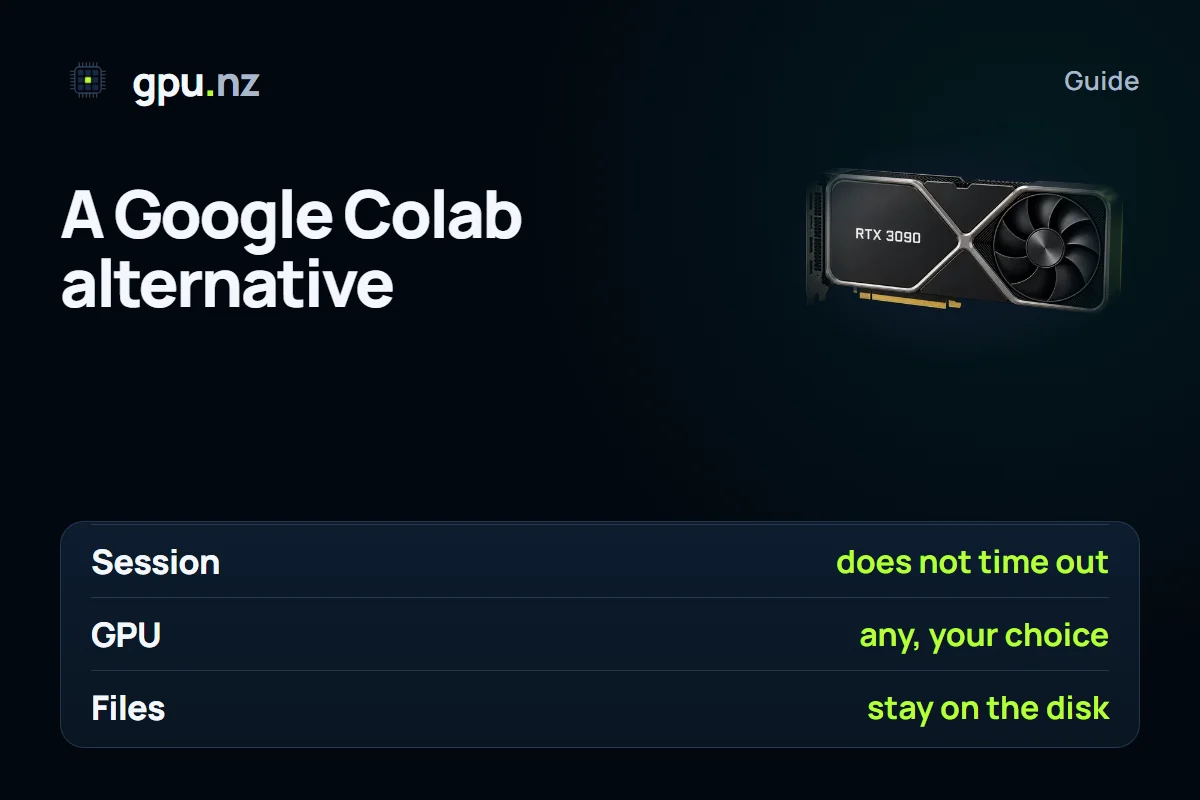
A Google Colab alternative with a GPU is JupyterLab on a server with a graphics card, rented by the minute. The notebook format is the same, .ipynb, and you work in the browser. The difference is that a session on the server does not time out while the server runs, and the disk keeps your files until you delete the server. JupyterLab comes from the PyTorch + Jupyter template; see the Jupyter page for details.
What limits Colab
Google Colab's plans change, so check the current terms on the service's website. Most complaints about limits come down to three things:
- Sessions are limited in time.
- A GPU is not always available: the card you need may not be free at the moment you need it.
- Access from Russia is limited, which is worth factoring into your plans.
If these limits get in the way, for example because training runs for hours, you need a specific card or the dataset is large, a server with JupyterLab solves the problem differently.
How a JupyterLab server differs
| Question | Google Colab | A server on gpu.nz |
|---|---|---|
| Session | Limited in time | Does not time out while the server runs and the balance covers it |
| Card | Assigned by the service; not always available | You pick a card from the catalogue by memory and price |
| Files | A temporary machine; lasting storage is usually Google Drive | The disk keeps its files until the server is deleted |
| Packages | Installed with pip in a notebook cell | pip and apt, as on an ordinary Linux machine; a clean system is available as Ubuntu + CUDA |
| Access | A browser notebook; no SSH | JupyterLab, a terminal and SSH on every server |
| Billing | Google's plans | Per minute from a balance; the price is fixed at launch |
When a Jupyter server is the better choice
- Training or experiments that run longer than an hour: the server does not cut out on a timer.
- A specific card is needed: 24 GB for LoRA or 80 GB for a large model.
- Large datasets: the files stay on the disk and do not have to be downloaded again at each start.
- You need SSH, your own environment or several processes at once, with terminals in tmux or screen.
How to move a notebook from Colab
- In Colab, open the File menu and choose Download, then Download .ipynb. The menu wording depends on the interface language.
- Start a server with the PyTorch + Jupyter template and a card of the memory you need. Open JupyterLab with the button on the server card.
- Upload the .ipynb file with the upload button in the JupyterLab file browser, or drag it into the window.
- Remove what only works in Colab: Google Drive mounting (drive.mount), files.upload and /content/ paths. Move data with SFTP, as the SSH guide explains, or download it by link with wget.
- Check the GPU in the first cell:
import torch
print(torch.cuda.is_available(), torch.cuda.get_device_name(0))
Install missing packages inside the notebook with %pip install package-name. Keep long-running processes in a terminal inside tmux or screen, so they keep running after you close the browser tab.
What to prepare before you rent
- A public SSH key in your account. JupyterLab works without one, but SSH access and file uploads over SFTP need it.
- A card for the task and a disk with room to spare. Datasets and model weights take more space than expected, so leave a margin.
- A requirements.txt file with your packages, so the environment installs with one command.
- A storage plan: what stays on the server's disk, and what you download to your own computer before you delete it.
Example: checking the environment
The first cell of a notebook, or the first terminal command, can check three things at once: the card, the PyTorch version and whether the environment installed correctly:
nvidia-smi
pip install -q -r requirements.txt
python -c "import torch; print(torch.__version__, torch.cuda.is_available())"
If the last line prints True, PyTorch can see the card. Keep the dependency install and the check in one script, so that after each new start the environment comes up with a single command.
Long jobs and dropped connections
Run training that takes hours inside tmux. The process keeps going if you close the browser tab or lose the connection. In the JupyterLab terminal it looks like this:
tmux new -s train        # a new session named train
python train.py            # start training inside it
# Ctrl+B, then D            # detach: the process keeps running
tmux attach -t train       # return to the session
Write logs to a file and save checkpoints to the disk. Then, even if the process stops, training resumes from the last step instead of starting over.
Code that runs on both CPU and GPU
Most notebooks need only one change to use the GPU: pick the device once, then move the model and the tensors to it.
import torch
device = 'cuda' if torch.cuda.is_available() else 'cpu'
model = model.to(device)
If memory runs out during training, reduce the batch size or turn on mixed precision. Both changes usually make the most difference, and both are easy to test on a short run.
Where to keep results
Save outputs as files in a folder on the disk: plots as PNG, tables as CSV, weights as safetensors. That way you can download everything as one archive without opening the notebook.
The dataset on the server
Keep a data set in one archive and unpack it onto the server's disk once. Then you do not have to upload the data again at every restart: the unpacked copy stays on the disk until the server is deleted. Before unpacking, check that there is room, because an unpacked set is usually much larger than its archive.
If you run short of memory
A CUDA out-of-memory error in a notebook often means old tensors are still held in memory. First delete the variables you no longer need, call the garbage collector and check memory with nvidia-smi:
del outputs, loss
import gc
gc.collect()
torch.cuda.empty_cache()
If that is not enough, reduce the batch size and use gradient accumulation: the effective batch size stays the same, while each step needs less memory. During long training, save checkpoints on a schedule rather than only at the end:
torch.save({'model': model.state_dict(), 'step': step}, f'checkpoints/step_{step}.pt')When a Colab notebook is still the simpler option
For short experiments of an hour or two, a free notebook is often more convenient: nothing needs setting up, and results arrive quickly. A server wins where continuity matters, where you need a specific card, a large data set, or the ability to return to earlier work a day or a week later. Choose by the task, not by habit.
Code and models from the internet
Take code from repositories: run git clone in the JupyterLab terminal. Models from Hugging Face are easiest to download from Python, and then they land in the right folder on the disk straight away:
from huggingface_hub import snapshot_download
snapshot_download(repo_id='<author>/<model>', local_dir='/workspace/models/<model>')
For gated models, pass your access token in the HF_TOKEN environment variable. Do not write it into the notebook, because anyone you share the file with can see it.
What survives a stop
Stopping the server ends all processes: variables in memory are lost, and the notebook kernel restarts. Files on the disk remain. Save expensive intermediate results to disk straight away rather than keeping them only in variables. It also helps to write the run settings to a file next to the weights, so you know how they were produced a week later.
Working together
The JupyterLab link is protected by the rental token, so only you can open it. It is easier to share results as files, such as plots, tables or weights, than to give anyone access to the server itself.
Charts during training
Write training logs to a file and plot the loss and the speed from it. A plain matplotlib cell in the notebook is enough. Save the charts as files, so you can compare runs a week later instead of only watching the screen during training.
Space on the disk
Check free space with df -h before any large download. If the disk fills up in the middle of training, saving a checkpoint fails and the last steps can be lost.
If the notebook freezes
If a cell hangs while the card sits idle, restart the notebook kernel from the kernel menu. Memory is freed, but variables are lost, so save your results before you restart.
How not to pay for idle time
While the server is stopped, the GPU is not billed. Stop it in the console when you finish. The disk stays and is billed, so delete data sets you no longer need, and delete a server you no longer need altogether, after you have downloaded the results.
- For experiments that can survive an interruption, use an interruptible server: it costs less, but it can be paused. Save training checkpoints to the disk.
- Watch your balance: warnings arrive 24 hours, 3 hours, 1 hour and 15 minutes before it runs out.
More saving habits are in the guide on not overpaying for GPU rental.
Which card to choose
For LoRA on 7–8B models, 24 GB of memory is usually enough, and the requirements for other tasks are in the guide to choosing a GPU for LoRA. Step-by-step training without your own card is covered in how to train AI models without your own GPU. Cards with the memory you need, and their current prices, are in the GPU catalogue.
Questions and answers
- How is a GPU Jupyter server different from Google Colab?
- A session does not time out while the server runs. You choose the card, files stay on the disk until you delete the server, and SSH is included. Billing is per minute from a balance.
- Can I move a Colab notebook without changes?
- Usually almost unchanged, because the .ipynb format is the same. Replace the lines that only work in Colab: Google Drive mounting, files.upload and /content/ paths.
- How do I check that the notebook sees the GPU?
- Run torch.cuda.is_available() in the first cell, or run nvidia-smi in the terminal.
- Are my files kept when I stop the server?
- Yes. Stopping does not delete the disk. Files are removed only when the server is deleted, so download your results first.
- Can I install my own packages?
- Yes. It is a Linux machine, so you install packages with pip and apt. For a clean system with the driver and CUDA, use the Ubuntu + CUDA template.
- Does the service work from Russia?
- Yes. The interface is available in Russian, and prices and the balance are in roubles.