9 min read ·
How to install ComfyUI on a PC or a GPU server, step by step
How to install ComfyUI on Windows or Linux, or start it on a rented GPU server from a template: VRAM needs, ComfyUI-Manager, model folders, workflows.
You can install ComfyUI in three ways. On a PC with an NVIDIA card, the portable build for Windows is the quickest: unpack the archive, run one file, and the interface opens in your browser. On Linux, you install ComfyUI from source. If you have no suitable card, or not enough memory, run ComfyUI on a rented GPU server. The ComfyUI page describes what the template includes.
What a local install needs
- An NVIDIA card with a current driver, because ComfyUI runs on CUDA. AMD cards and Macs use different instructions, which this guide does not cover.
- Video memory. It decides which models will run, so check the table below.
- Disk space: a few gigabytes for the program and tens of gigabytes for models.
- 16 GB of system RAM or more. With 8 GB, large models push the system into swapping and everything slows down.
How much video memory you need
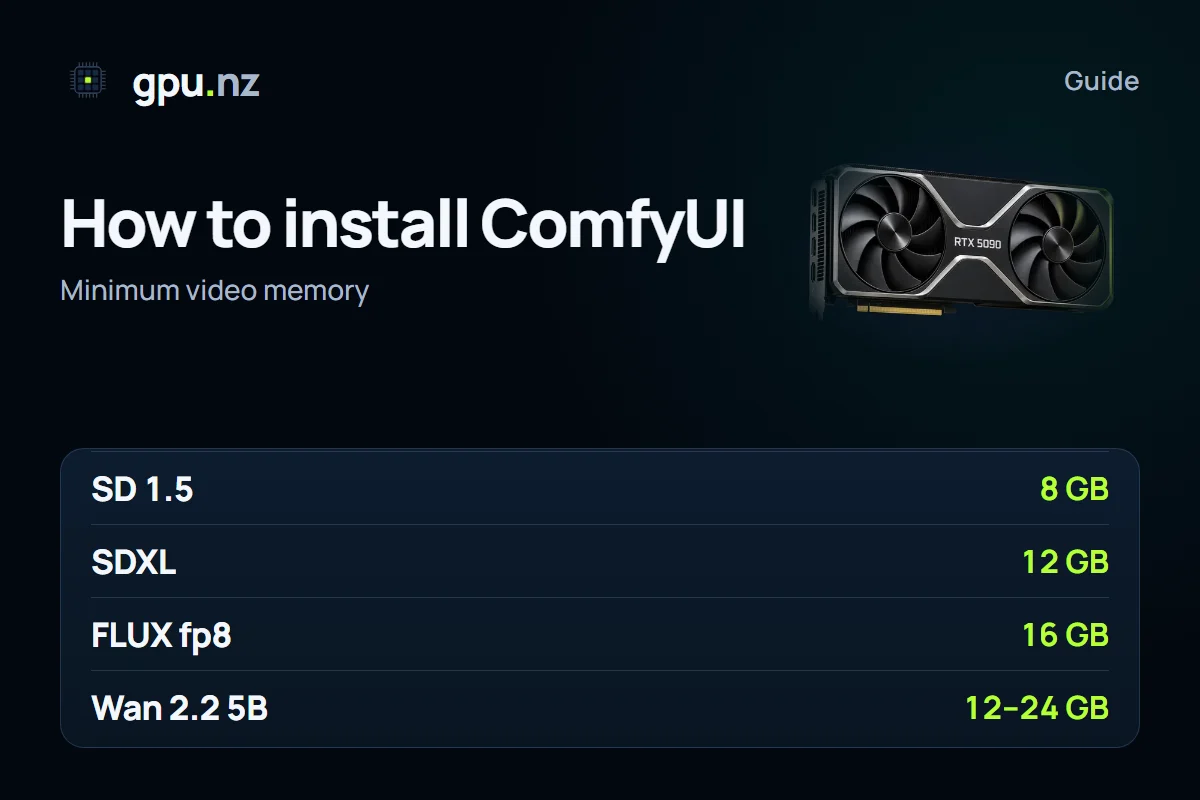
The figures are estimates for typical settings: about one megapixel for images and 480p to 720p for video. The minimum is roughly the least memory the model starts with; comfortable leaves room for higher resolution and LoRAs. For SDXL and FLUX in fp8, an RTX 4090 with 24 GB is a common choice.
| Model family | Minimum | Comfortable | Notes |
|---|---|---|---|
| SD 1.5 | 8 GB | 12 GB | Fast generation and a large LoRA library |
| SDXL | 12 GB | 16 GB | A large ecosystem of LoRAs and ControlNets |
| FLUX.1 in fp8 | 16 GB | 24 GB | Quantised weights: less memory for a small loss of precision |
| FLUX.1 in bf16 | 24 GB with offloading | 40 GB or more | Full-precision weights |
| Wan 2.2 TI2V-5B | 12 GB with offloading | 24 GB | A compact model for short clips |
| Wan 2.2 A14B | 16 GB in fp8 with offloading | 24 GB or more | Two expert models of 14B parameters each; slower per clip |
If ComfyUI reports an out-of-memory error, lower the resolution and the frame count first. The --lowvram flag in the launch command moves part of the model into system RAM: it is slower, but larger models run. For video, the Wan2GP template is the simplest option if you do not want to tune memory by hand.
Option 1. Portable build for Windows
- Download the portable NVIDIA build of ComfyUI from the releases page of the official ComfyUI repository on GitHub. It is a 7z archive, so you need 7-Zip or a similar tool.
- Unpack it to a folder whose path uses Latin letters only, for example C:\ComfyUI. Non-Latin characters in the path can break custom nodes.
- Run run_nvidia_gpu.bat in that folder. The first start can take several minutes.
- Open the address the console prints, usually http://127.0.0.1:8188.
- To update, use the update script in the portable folder rather than reinstalling the program.
Option 2. Linux from source
Install PyTorch with CUDA first, then ComfyUI's requirements. Take the PyTorch command for your CUDA version from pytorch.org, because it changes from release to release.
git clone https://github.com/comfyanonymous/ComfyUI.git
cd ComfyUI
python3 -m venv venv && source venv/bin/activate
# first: PyTorch with CUDA, using the command from pytorch.org
pip install -r requirements.txt
python main.py
Option 3. A GPU server on gpu.nz
This route needs no installation: ComfyUI is already in the template, and you add models and workflows to the server's disk.
- In the rent form, pick the ComfyUI template and a card with enough memory: 12 GB or more for SDXL, 16 GB or more for FLUX and video. All templates are listed on the templates page.
- If you plan to work in a terminal, add your SSH key before you rent. The SSH guide explains how.
- Wait for the server to start. This usually takes 2 to 5 minutes.
- Open ComfyUI with the button on the server card. The JupyterLab button next to it gives you a file browser and a terminal.
- The template adds an example workflow for SDXL Turbo. If ComfyUI reports a missing model, download it as shown below.
ComfyUI-Manager and custom nodes
ComfyUI-Manager is an extension that installs custom nodes and models from inside the interface. Custom nodes are extra blocks that a workflow may need but the base ComfyUI does not include. Recent builds may already show a Manager button. If yours does not, install the Manager by hand. Check the ComfyUI folder path on the server first with ls /workspace.
cd /workspace/ComfyUI/custom_nodes
git clone https://github.com/ltdrdata/ComfyUI-Manager.git
Restart ComfyUI after the install. The Manager offers a Restart button once nodes have been installed.
- Install only the nodes your workflow needs. Each extra node adds a chance of a dependency conflict.
- Install a node's requirements with the same Python that runs ComfyUI. The node folder usually contains a requirements.txt file.
- If ComfyUI stops starting after an install, delete the last folder you added to custom_nodes and restart the program.
Where models go
ComfyUI looks for each kind of model in its own folder inside models, and a file in the wrong folder will not appear in the loader. The newer folder names are diffusion_models and text_encoders; ComfyUI also reads the older unet and clip folders.
| Folder | What goes in | Examples |
|---|---|---|
| models/checkpoints | Complete models that include the main network, a decoder and a text encoder | SD 1.5, SDXL |
| models/diffusion_models | The main network of newer models (formerly models/unet) | FLUX, Wan 2.2 |
| models/text_encoders | Text encoders (formerly models/clip) | CLIP and T5 for FLUX, umT5 for Wan |
| models/vae | Decoders that turn latents into pixels or frames | SDXL VAE, the ae file for FLUX |
| models/loras | LoRA add-ons | Styles, characters, motions |
| models/controlnet | ControlNet models | Pose, edges, depth |
| models/upscale_models | Upscalers | Models in the ESRGAN family |
A FLUX or Wan setup is several files: the main network, a text encoder and a VAE. A workflow keeps its nodes red until each part is found, so check every folder.
Download a model to the server
Large files are easier to fetch on the server than to upload from your computer. Open a terminal from JupyterLab and use wget. Save the file in the folder that matches its type:
cd /workspace/ComfyUI/models/checkpoints
wget -O sd_xl_base_1.0.safetensors "https://huggingface.co/stabilityai/stable-diffusion-xl-base-1.0/resolve/main/sd_xl_base_1.0.safetensors"
Some Hugging Face models are gated. Accept the licence on the model page first, then pass your access token in a request header. Put the token in the command only while the download runs, and never save it in a workflow or in a file you share:
wget --header="Authorization: Bearer <your token>" -O flux1-dev.safetensors "<file link>"Civitai links often need an API key, which you pass as the token parameter of the link. If a download breaks, wget -c resumes the file from where it stopped. Run long downloads inside tmux or screen so they survive a dropped connection. Check the result with ls -lh in the target folder.
Load a workflow
- Drag a PNG made by ComfyUI, or a workflow file in JSON, into the browser window. ComfyUI stores the graph in the PNG metadata, so an image from ComfyUI opens its own workflow.
- Or open the menu, choose Load and pick a .json file.
- Red nodes mean a node is missing or out of date. Install it through the Manager, which lists the nodes that are missing.
- Save your own workflows with Save. They go to user/default/workflows on the disk and survive a restart until the server is deleted.
Common problems
- An out-of-memory error during generation: lower the resolution or the frame count, unload models with the button in the interface, or pick a card with more memory.
- A model does not appear in a loader: the file is in the wrong folder or has the wrong extension. Check the table and reload the page.
- The interface does not open after launch: wait five minutes, then check in the JupyterLab terminal whether the process is running. If it is not, send the error text to support on Telegram at @gpunzbot.
Check the install with a first generation
Once the interface opens, check that the model sees the card and that generation runs on the GPU. Load the default workflow, select a checkpoint in the loader node and press Queue Prompt. While the image renders, open a terminal and run:
nvidia-smiThe process list should show a Python process with GPU load and memory in use. If the GPU stays idle, ComfyUI is running on the CPU or cannot see CUDA. The usual cause is the PyTorch build: reinstall the CUDA version and restart the program.
Updating ComfyUI and its nodes
Update ComfyUI only when you need to. After an update, older workflows sometimes stop working, because nodes are renamed or their inputs change. Before you update, keep a copy of the working version and a list of installed nodes. If something breaks, roll both back to the earlier versions.
If you need one specific release, keep a copy of it on the disk and launch that copy.
Stop the server when you finish tuning prompts. Models on the disk stay until the server is deleted, so the next start is quick. The disk is billed while the server is stopped, too; the template recommends 100 GB, so keep only the models you use.
For everyday work with ComfyUI on a server, such as saved workflows and folder habits, see ComfyUI on your own server. For choosing a card for FLUX and Forge, see Stable Diffusion and FLUX on a rented GPU.
Questions and answers
- How do I install ComfyUI on Windows?
- Download the portable NVIDIA build from the official ComfyUI releases page on GitHub, unpack it to a folder with a Latin-only path and run run_nvidia_gpu.bat. The interface opens at 127.0.0.1:8188.
- Is 8 GB of VRAM enough for ComfyUI?
- For SD 1.5, yes. SDXL needs about 12 GB, and FLUX or video models need 16 GB or more with quantisation and offloading.
- Where does ComfyUI keep its models?
- In folders inside models: checkpoints for complete models, diffusion_models and text_encoders for FLUX and Wan, loras for LoRAs and vae for decoders.
- How do I install ComfyUI Manager?
- Clone the ComfyUI-Manager repository into the custom_nodes folder and restart ComfyUI. Recent builds may already include a Manager button.
- How do I download a model from Hugging Face to a GPU server?
- Open a terminal in JupyterLab and run wget -O with the direct file link. For gated models, pass your Hugging Face access token in the request header.
- What should I do about an out-of-memory error?
- Lower the resolution and the frame count, unload models, close unused nodes, enable offloading in the launch flags, or choose a card with more memory.