9 min read ·
Local AI video generation: Wan 2.2, HunyuanVideo, LTX-Video
Which open video models run on your own GPU: Wan 2.2, HunyuanVideo and LTX-Video, their memory needs, and how to set resolution and length.
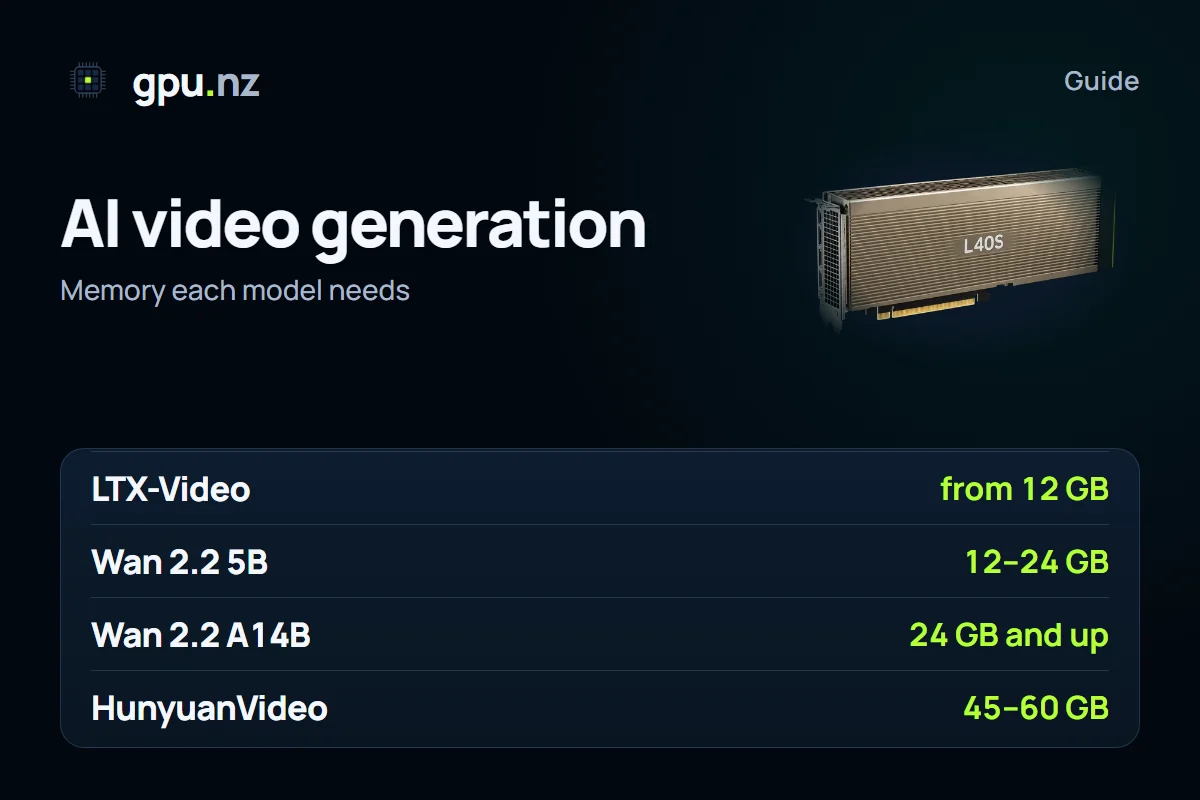
You can generate video with an open model in two ways: on your own card with 16 to 24 GB of memory, or on a rented GPU server with a ready interface. The open models people run locally most often are the Wan 2.2 family, HunyuanVideo and LTX-Video. Which one you pick depends on the memory your card has, the resolution you need and how long you can wait for one clip. The video generation page lists the models and templates.
Which model to choose
| Model | What it does | Memory (estimate) | Notes |
|---|---|---|---|
| Wan 2.2 TI2V-5B | Video from text and from an image, compact version | From 12 GB with offloading; 24 GB is comfortable | Lighter and faster than the 14B models |
| Wan 2.2 A14B | Video from text and from an image, with two expert models of 14B parameters each | From 16 GB in fp8 with offloading; 24 GB or more is comfortable | Heavier and slower for each clip |
| HunyuanVideo | Video from text, 13B parameters | The authors report about 45 GB at 544×960 and about 60 GB at 720p, at full precision | On 24 GB only a low resolution and quantisation work |
| LTX-Video | Fast video from text and from an image | From about 12 GB; one of the lightest models | Good for quick checks of an idea |
These are estimates for short clips and standard settings. Authors and the community publish different measurements, so test your own resolution with a short clip before you plan a batch.
How resolution, length and steps change the cost
A video is many frames, and the model computes relations between them and inside each frame. Memory and time therefore grow faster than the size of the result suggests. Three settings matter most:
- Resolution. Moving from 480p to 720p noticeably raises both memory use and generation time.
- Length. The frame count sets the clip length. Generation time grows faster than the length itself, so long shots cost disproportionately more.
- Steps. More sampling steps usually give a cleaner result, but after a certain point the gain shrinks while the time keeps rising.
Start with short test clips at a low resolution, and raise the settings only where the result needs them. One 720p clip on a large model can take anywhere from a few minutes to half an hour, depending on the card and the settings. That is an order of magnitude, not a measurement, so time your own test runs.
Wan2GP or ComfyUI
Both tools run the same open models, but the approach differs. Wan2GP is a ready interface where you choose a model and its main settings. ComfyUI is a node editor where you build the chain yourself. The install guide covers ComfyUI and its model folders.
| Wan2GP | ComfyUI | |
|---|---|---|
| Start | The interface is ready at once; models are chosen from a menu | You place the files in the right folders and open a workflow |
| Memory | Memory settings for your card are already in the interface | You set offloading and quantisation yourself, with launch flags and nodes |
| Flexibility | A choice of models and main settings | LoRAs, upscaling, frame interpolation and any custom chain |
| Best for | First experiments and quick clips | Your own pipelines, repeated jobs and integrations |
| Cards on gpu.nz | RTX 40 and RTX 50, L40S, H100 and newer | From 12 GB for SDXL; 16 GB or more for video |
The Wan2GP template on gpu.nz runs only on RTX 40 and newer cards, L40S and H100. For RTX 30 series and A100 cards, the service refuses to rent this template and asks you to pick a newer card.
Your first clip on a rented server
- Choose the Wan2GP template and a card of the RTX 40 generation or newer, an L40S or an H100. For the 14B model, plan on 24 GB of memory or more.
- Set the disk size. The template needs at least 80 GB and recommends 128 GB, because video models weigh tens of gigabytes.
- Wait for the start, usually 2 to 5 minutes, and open Wan2GP with the button on the server card.
- The first use downloads the model. A file of about 60 GB takes 10 to 30 minutes, so the first run is much longer than the rest.
- Make a short test clip, note the time, download the result and stop the server.
How to avoid overpaying
- Test on short clips at a low resolution. Render the final version once the settings are right.
- Prepare a batch of prompts in advance, so the server does not sit idle while you write the next one.
- Stop the server between sessions. Models on the disk stay put, so the next start is quicker.
- An interruptible server suits batches of clips: finished files are already on the disk, and a clip that was cut off can be run again.
- Do not take a card with spare memory without need. An 80 GB card costs more, and 480p clips do not use that memory.
- Work out the cost of a clip: minutes of work multiplied by the per-minute price. The live prices are shown under the text, and general saving habits are in the guide on not overpaying for GPU rental.
What to choose for your task
- Quick drafts and ideas: LTX-Video or Wan 2.2 5B on 24 GB.
- Client work: Wan 2.2 A14B on 24 GB or more, after test runs.
- A roomy setup for the 14B model: an RTX 5090 with 32 GB, or an L40S with 48 GB.
- Training your own LoRA for video: the AI Toolkit template needs a card with 24 GB or more.
Writing a prompt for video
A prompt for a video model describes what happens over time: who or what is in the frame, what action takes place, how the camera moves and what the light is like. One scene should carry one action. If a prompt asks for three actions in a row, the model often mixes them up or stretches them, and the clip looks jerky.
Useful details include the shot type (close-up or wide), the camera movement (a push-in or a pan) and the pace of motion. A negative prompt helps remove common defects such as blur, shaking or extra limbs. Many video models follow English prompts better, but test that with a short clip.
Common errors and their causes
- Out of memory at the start of generation: the model does not fit. Lower the resolution or the frame count, turn on offloading, or pick a card with more memory.
- A slow first start: the model is downloading or compiling. The second run is usually much faster.
- Flickering or shaking frames: often caused by too few steps, an abrupt change of motion or an unsuitable resolution. Try another prompt and another frame count.
- Black or grey frames: most often a precision problem in the decoder or an incompatible component. Check that the VAE and the text encoder match the main model.
Choosing resolution and format
Pick the resolution in stages: test at 480p, and render the final clip at 720p only once the prompt works. If the clip is for vertical social media, generate it vertically from the start, because not every model handles unusual aspect ratios well. Clips that come out of the model are usually short, so assemble the story in an ordinary video editor on your own computer rather than on a rented server.
Planning a batch of clips
Count how many clips you need in the end, how many test runs each one will take (usually several), and how many minutes a test and the final render take. Multiply them to get the session time, then multiply by the per-minute price from the catalogue. The result is a budget you can see before you start.
A test log and repeatable results
Log every test run: the model, resolution, frame count, steps, seed and generation time. After a week without notes it is hard to remember which settings gave the good clip. A fixed seed keeps the composition: when you change one parameter, you see its effect rather than chance.
What to check before the final render
- The motion on the first and last frames matches the plan.
- No shaking objects and no breaks in clothing, hands or faces.
- The resolution and length are the ones the edit needs, not more.
- The prompt describes one action and does not contradict itself.
Why short test clips pay off
A full 720p clip from a large model can take tens of minutes, while a short test clip at a low resolution takes far less. If a fault is easier to find on a short clip, it also costs less to chase. So refine the prompt and the composition first, and run the final render once the test runs show the result you want.
What to do when a clip does not work
- Check the prompt: one action, a clear camera, no contradictions.
- Lower the resolution and the frame count. If the fault disappears, it was tied to memory or to the clip length.
- Change the seed: the same scene sometimes comes out better with a different starting noise.
- Try another model: different models interpret the same prompt in different ways.
- If the faults repeat at every setting, check the model's components (the VAE and the text encoder) and the version of the program.
When you finish, stop the server and download the clips before you delete it, because the disk goes with the server.
Questions and answers
- What GPU do I need for video generation?
- For Wan 2.2 5B and LTX-Video, 12 to 16 GB with offloading usually works, and 24 GB is comfortable. For Wan 2.2 14B, plan on 24 GB or more. The authors of HunyuanVideo report about 45 to 60 GB at full precision.
- Will Wan 2.2 run on an RTX 3090?
- In ComfyUI, usually yes, with quantisation and offloading, though more slowly. The gpu.nz Wan2GP template does not accept RTX 30 series cards, so you need an RTX 40 or newer.
- How long does one video take to generate?
- It depends on the card, the model, the resolution and the frame count. One 720p clip on a large model can take from a few minutes to half an hour. Time a short test clip and multiply by the number of attempts.
- What is the difference between Wan2GP and ComfyUI?
- Wan2GP is a ready interface with model and memory settings. ComfyUI is a workflow editor where you build the chain yourself, including LoRAs and upscaling.
- How much disk space do video models need?
- Wan and HunyuanVideo models are tens of gigabytes each. The Wan2GP template requires at least 80 GB and recommends 128 GB.
- Can I generate video without my own GPU?
- Yes, on a rented GPU server. Billing is per minute: while the server is stopped the GPU is not billed, and finished clips stay on the disk until the server is deleted.