9 min read ·
Ollama, LM Studio, llama.cpp or vLLM: which to pick
Qwen3.8 27B takes 17.2 GB as GGUF Q4_K_M and 52.8 GB as BF16. Which of Ollama, LM Studio, llama.cpp and vLLM to pick: a docs-checked table and how to run it.
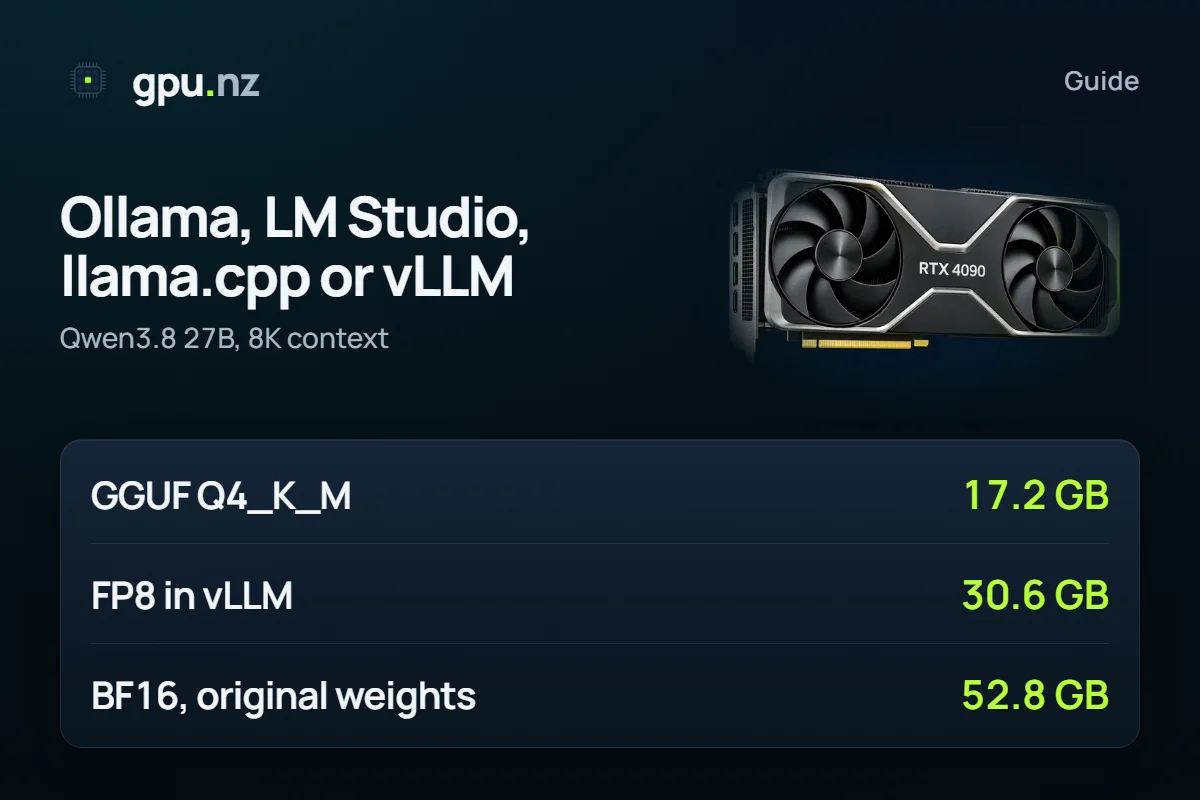
At home, for yourself, pick LM Studio or Ollama; for an API on a server, pick Ollama for one user and vLLM for many. The choice changes the memory too: Qwen3.8 27B takes 17.2 GB as GGUF Q4_K_M and 52.8 GB as the original BF16 weights that vLLM runs. Below: a feature table checked against the docs on 2026-10-20, the memory for each format and how to start it on a rented GPU.
- Qwen3.8 27B, GGUF Q4_K_M, 8K context: Ollama, LM Studio, llama.cpp
- 17.2 GB
- Qwen3.8 27B, GGUF Q4_K_M, 8K context: Ollama, LM Studio, llama.cpp
- the same model at FP8, 8K context: vLLM
- 30.6 GB
- the same model at FP8, 8K context: vLLM
- original BF16 weights, 8K context: vLLM
- 52.8 GB
- original BF16 weights, 8K context: vLLM
- FP8 with 16 requests at once, 8K each
- 40.2 GB
- FP8 with 16 requests at once, 8K each
How do Ollama, LM Studio, llama.cpp and vLLM differ?
All four run open models, but they split the work differently: LM Studio and Ollama are ready-made programs, llama.cpp is an engine with many flags, and vLLM is a server for an API under load.
- Ollama is a program that downloads a model and runs it with one command, ollama run. It has a REST API and an OpenAI-compatible /v1 address.
- LM Studio is a desktop app: a chat, a model catalog and a local-server switch. For servers there is a windowless mode (llmster) and the lms command-line tool. It runs models on the llama.cpp engine, and on Macs with Apple Silicon on MLX as well.
- llama.cpp is an open C/C++ engine under the MIT licence. It also provides llama-server, with an OpenAI-compatible API and a web interface.
- vLLM is a library and server that serves models through an API. It was built for simultaneous requests and has no web chat.
What they can do in practice is in the table. Its rows come from the projects' READMEs and documentation, checked on 2026-10-20.
| Feature | Ollama | LM Studio | llama.cpp | vLLM |
|---|---|---|---|---|
| Interface | Terminal and API, an app on Windows and macOS; Open WebUI adds a web chat | A window with a chat, a model catalog and a server switch | Terminal and API; llama-server has a web interface | API only, no ready web chat |
| API | Its own REST API and /v1 in the OpenAI format (a subset), port 11434 | OpenAI-compatible /v1 and an Anthropic-compatible one; port 1234 in the examples | OpenAI-compatible chat completions, responses and embeddings, plus Anthropic Messages; --api-key | OpenAI-compatible (chat, completions, responses, embeddings) and Anthropic Messages; started with vllm serve |
| Several users | By default 1 request per model, the rest queue; set with OLLAMA_NUM_PARALLEL | Continuous batching in the llama.cpp engine, 4 requests at once by default | Parallel slots (-np) and continuous batching, on by default | Continuous batching and PagedAttention: built for throughput |
| Weight formats | GGUF, and safetensors on import; the Ollama library and hf.co/… | GGUF; MLX on Macs with Apple Silicon | GGUF, 1.5- to 8-bit quantisation | Hugging Face weights: FP8, INT8, INT4, GPTQ, AWQ. GGUF is “highly experimental” |
| Systems | Windows 10 22H2+, macOS, Linux, Docker; NVIDIA, AMD, Apple Metal, Vulkan | Windows (x64, ARM), Linux (x64, ARM64), macOS on Apple Silicon only | Windows, macOS, Linux, Docker; CUDA, HIP, Metal, Vulkan, SYCL, CPU | Linux; Windows only through WSL; NVIDIA from compute capability 7.5, AMD, Intel |
| Licence | MIT | Free at home and at work (since July 2025) | MIT | Apache 2.0 |
| On gpu.nz servers | Open WebUI + Ollama template | No template | No template | vLLM template |
Sources: docs.ollama.com and the Ollama README, lmstudio.ai/docs, the ggml-org/llama.cpp repository on GitHub, docs.vllm.ai. We did not measure generation speed and do not compare it: it depends on the card, the model and the quantisation.
Where to download Ollama, LM Studio, llama.cpp and vLLM
Ollama, llama.cpp and vLLM install with a terminal command; LM Studio is an ordinary app from lmstudio.ai. The commands come from the projects' documentation.
# Ollama: Linux and macOS
curl -fsSL https://ollama.com/install.sh | sh

# Ollama: Windows, PowerShell
irm https://ollama.com/install.ps1 | iex

# llama.cpp: Linux and macOS
curl -LsSf https://llama.app/install.sh | sh

# vLLM: Linux with an NVIDIA card
uv pip install vllm --torch-backend=auto
vllm download-kernels
LM Studio runs on Windows, Linux and Macs with an Apple Silicon chip; it does not run on Intel Macs. llama.cpp has ready builds on the Releases page of the ggml-org/llama.cpp repository, and a Docker image. vLLM needs Linux and, for NVIDIA cards, compute capability 7.5 or higher: an RTX 20-series card or newer.
How much memory does one model take in each format?
The same Qwen3.8 27B takes from 17.2 GB to 52.8 GB, and the difference is in the weight format, not the program. Ollama, LM Studio and llama.cpp work with quantised GGUF files: Q4_K_M stores about 4.8 bits per parameter instead of 16. vLLM takes Hugging Face weights: the original BF16, or compressed FP8, AWQ or GPTQ.
- Q4_K_MGGUF: Ollama, LM Studio, llama.cpp17.2 GB
- Q8_0GGUF28.9 GB
- FP8vLLM30.6 GB
- BF16original weights, vLLM52.8 GB
The Q4_K_M weights are 3.3 times lighter than BF16 (15.3 GB against 50.9 GB). Q4_K_M fits a 24 GB card. Q8_0 and FP8 need a 32 GB card, and FP8 almost fills it. BF16 needs an 80 GB card.
GPT-OSS 20B looks different: it was released in MXFP4 from the start, and its weights are 11.3 GB. With an 8K context it needs 12.6 GB, a 16 GB card. Expanding the weights to BF16 gives about 40.3 GB (estimated from the parameter count) and a 48 GB card. Before you pick a program, check the format the model was released in: the memory depends on it.
What changes when many requests arrive?
All four can serve several requests at once, but every request has its own context cache, and it takes GPU memory. The Ollama documentation says so directly: memory grows as OLLAMA_NUM_PARALLEL × OLLAMA_CONTEXT_LENGTH.
- 1 request8K30.6 GB
- 4 requests8K32.5 GB
- 16 requests8K40.2 GB
- 16 requests, 32K32K window each64.2 GB
For one request with an 8K window, the Qwen3.8 27B cache takes 0.64 GB: the model has a hybrid architecture, so it is modest. For 16 requests that is 10.3 GB, and at a 32K window 34.3 GB. One request fits a 32 GB card, four need 48 GB, and sixteen at 32K need 80 GB.
The number of simultaneous requests is set differently in each tool. In Ollama it is the OLLAMA_NUM_PARALLEL variable, in llama.cpp the -np flag (the number of slots), in LM Studio the Max Concurrent Predictions setting. In vLLM it is limited by the memory left after the weights.
What to pick: a PC, a server or maximum control
- One person, a home computer. LM Studio if you want a window with a chat and a model catalog. Ollama if you prefer the command line and need an API for your own programs. On Windows and Mac these two are the easiest.
- No GPU of your own, or the model does not fit. Rent a server with Ollama: the template gives a browser chat and an API. It is enough for you and a small team.
- An API for many users or a service. vLLM: continuous batching, Hugging Face weights, FP8 and AWQ. It needs Linux; on Windows it runs only through WSL.
- You need to squeeze a model into limited memory. llama.cpp: fine control over the cache, layers and experts, described below.
llama.cpp helps when a model barely fits. It can store the K and V cache compressed: the flags -ctk q8_0 -ctv q8_0 make it about half the size. For Qwen3.8 27B at Q4_K_M with a 128K context that is 20.9 GB instead of 24.7 GB, so a 24 GB card is enough instead of 32 GB. Ollama has the same trick (OLLAMA_KV_CACHE_TYPE), but with one cache type for all models. Its documentation calls the precision loss at q8_0 very small.
With MoE models, llama.cpp can keep the experts in system RAM (the --cpu-moe and --n-cpu-moe flags), and a model that does not fit in GPU memory runs in a hybrid CPU and GPU mode. In that mode answers are slower than with the whole model in GPU memory.
Check your own model
Pick a model, a format and a context: the calculator shows the memory and the catalog GPUs that run it for the least money. For vLLM look at the FP8 and BF16 options, for Ollama, LM Studio and llama.cpp at Q4_K_M and Q8_0. The rule of thumb is in the VRAM guide for LLMs.
How to run Ollama or vLLM on a rented GPU
Two of the four tools have ready templates on gpu.nz servers: Ollama and vLLM. LM Studio is a desktop app, so it has no template, and neither has llama.cpp. Qwen3.8 27B also has a ready chat: the Qwen 3.8 template on a card of 24 GB or more.
Pick a card and a template
Work out the memory above and open the catalog. Press «Rent» and choose the Open WebUI + Ollama template (a card of 8 GB or more) or vLLM (24 GB or more).
Set the model and the disk
In Ollama, type a name such as qwen3:8b into the Model field, or leave it empty and pull a model in the chat; take a disk of at least 40 GB. vLLM starts Qwen2.5 7B by default and needs a disk of 50 GB or more, 100 GB is better.
Wait for the start
Ollama usually downloads a model in 3–10 minutes. vLLM takes 10–30 minutes or more, because it downloads and compiles the model. A notification arrives when the API starts answering.
Connect your client
The Ollama API address is the «Ollama API» link on the server page (https://<id>-11434.run.gpu.nz/v1); the vLLM address is the «API (port 8000)» button (https://<id>-8000.run.gpu.nz/v1). The key is the access token from the same page, and the model name must match the name on the server.
# vLLM curl https://<id>-8000.run.gpu.nz/v1/chat/completions \ -H "Authorization: Bearer <token>" \ -H "Content-Type: application/json" \ -d '{"model": "Qwen/Qwen2.5-7B-Instruct", "messages": [{"role": "user", "content": "Hello"}]}' # Ollama: port 11434 and a model name from the list curl https://<id>-11434.run.gpu.nz/v1/chat/completions \ -H "Authorization: Bearer <token>" \ -H "Content-Type: application/json" \ -d '{"model": "qwen3:8b", "messages": [{"role": "user", "content": "Hello"}]}'Stop the server when you are done
A stopped server costs nothing for the GPU, but its disk with the models is billed until you delete the server.
To change the model in vLLM, connect over SSH and restart the server with the --model you want; in Ollama the ollama pull command is enough. Commands and common mistakes are in the guide Ollama and vLLM on a rented GPU, and models that fit are in the best Ollama models list.
LM Studio and llama.cpp have to be installed on the server by hand over SSH. With no GPU of your own at all, start with local AI without a powerful PC.
What can go wrong
- Parallel requests multiply the cache. The first tables are computed for one request. For an API with several people, add memory for the cache of every simultaneous request, especially with a long context.
- GGUF in vLLM is not the main path. The vLLM documentation calls GGUF support highly experimental and requires a separate plugin. For vLLM take FP8, AWQ or the original weights.
- vLLM takes almost the whole card. The --gpu-memory-utilization parameter sets the share, so other jobs on the same card usually cannot run.
- The vLLM key does not guard every address. By the documentation, --api-key is checked only on the /v1, /v2 and /inference paths. If you install vLLM yourself, put the port behind a proxy.
- The model did not fit in GPU memory. Ollama and llama.cpp put some layers in system RAM and still start, but answers become noticeably slower. In Ollama the share shows in the Processor column of ollama ps.
How we counted
Weights are real file sizes: GGUF from Hugging Face repositories, FP8 and BF16 from the models' original repositories. The BF16 size of GPT-OSS 20B is computed from its parameter count. The context cache is computed from the model's config.json; for several requests it is multiplied by their number, each request filling its whole window. The runtime is about 0.75 GB plus the logits buffer. 1 GB here is 1024³ bytes, as on GPUs. Calculator data as of 2026-10-19; the method is in the calculator, and one table for 35 models is in How much VRAM do open LLMs really need?.
The tools' features were checked against their official documentation on 2026-10-20: the README and docs.ollama.com, lmstudio.ai/docs, the llama.cpp README and server documentation, and docs.vllm.ai. Releases are frequent, so open the project page before you install.
Questions and answers
- Which is better, LM Studio or Ollama?
- LM Studio is better if you want a window with a chat and a model catalog on Windows, macOS or Linux. Ollama is handier from the command line and for an API: it runs a model with one command and answers at a /v1 address in the OpenAI format. gpu.nz servers have an Ollama template and no LM Studio template.
- vLLM or Ollama: which one for an API?
- Ollama suits you and a small team; vLLM suits many requests. vLLM batches requests continuously and works with Hugging Face weights, including FP8 and AWQ, but it takes 10–30 minutes to start and needs Linux. Ollama starts in a few minutes and takes GGUF files.
- Where can I download Ollama and LM Studio?
- LM Studio downloads from lmstudio.ai, with versions for macOS on Apple Silicon, Windows and Linux. Ollama installs with the command from its README: curl -fsSL https://ollama.com/install.sh | sh on Linux and macOS, or irm https://ollama.com/install.ps1 | iex in PowerShell on Windows.
- What is llama.cpp and how is it different from Ollama?
- llama.cpp is an open C/C++ engine under the MIT licence: it runs GGUF models and includes llama-server, with an OpenAI-compatible API. Ollama is a ready program that downloads models and runs them with one command. llama.cpp has more tuning flags, but you have to learn them yourself.
- Does vLLM work on Windows?
- Not directly. The vLLM documentation requires Linux and says that on Windows it runs only through WSL or unofficial forks. Macs with an Apple Silicon chip have a separate project, vLLM-Metal. On Windows, Ollama or LM Studio is simpler.
- Can I run LM Studio on a server?
- Yes, LM Studio has a windowless mode, llmster: it installs on Linux with a command from the documentation and is managed with the lms tool. gpu.nz has no template for it, so for a server the Ollama or vLLM template is simpler.


